

Glenn
BassResource.com Administrator
-
Joined
-
Last visited
Everything posted by Glenn
-
...aaaaaand it did.
-
Read this: It explains a lot.
-
When you post a comment, there's a toggle to the left of the "submit reply" button that says "Notify me of replies".
-
-
-
-
Welcome Home!
-
Welcome Home!
-
Welcome Home!
-
Ha! I have to laugh at myself. I should have known this, but I just figured it out. Clicking the topic itself will just bring you to the top of a thread. In order to jump to the last read post, you will need to click the circle or star icon next to the title of the topic in the "forum topic" or "view new content listings" view. In the board index listing, clicking the topic will go to your last unread post.
-
So, when you upload a picture, after it's uploaded, drag and drop it into your post. Jigfishn10 - go back and edit your post this way. Let us know if that worked.
-
I'm not sure why you're getting the certificate error. I updated the site certificate about a month ago to a new one with a better encryption algorithm. You might want to clear out the certificates in your device, as you could have a conflict with the old one. Also check to ensure you're viewing the site via http:// and not https:// ----------------- Click the "X minutes ago" link. It will take you to the last post on the thread. If you scroll up from there, you'll see a thin blue line, showing you the spot where you last left off. It's not as graceful as the previous version. We're working on that.
-
Indexing completed last night. You may use the forum search function now as always.
-
Fixed it for you.
-
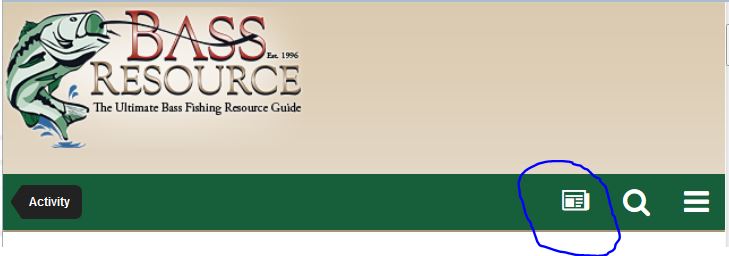
Click the button I've circled. Viola! New unread content!! One click, right in front of you. Can't miss it. . And yes, both desktop and mobile are indeed the same. Just go to your desktop and resize your browser window, and you'll get the different mobile views. That's how I got the screenshot - from my desktop.
-
I suspect you mean "followed" posts. To find those, look in the upper right above the search field. See your name there with a little down arrow next to it? Click it. Then click on "Manage Followed Content".
-
Just to answer the same questions I've been getting via PM and emails about the old mobile site: There isn't a Mobile Version anymore. Mobile and desktop are the same, meaning one version now. There is no Mobile Version switch or button to toggle versions. There's nothing to toggle anymore. There's no going back to the old version. There's no way to see the old version. Please see This Announcement for more details about the new features and functions of the redesigned forums. There's a lot, especially if you previously only used the mobile version. Thanks! Glenn
-
Sounds like all the hype about the Mariners every year before the season begins.....because that's the only time they look good.
-
The "mobile version" and desktop version are the same now, bringing much more flexibility and features to the "mobile version" than ever before. I realize it's a steep learning curve if you're used to the old "mobile version". It's an adjustment to be sure. But I think after you've had some time to get used to it, you'll wonder why you liked the older version.
-
Here are a few options I did in a video: screencast_2015-12-19_15-32-56.mp4 Sum it up: 1. Must select the outside wrapper of the quote then backspace. 2. CMD/Ctrl + right click will give you editor options. 3. Which I didn’t show in a video, click source delete the code.
-
I just about spewed my coke! LOL!
-
Hey Folks- I want to announce a few changes to the moderator crew here at BassResource. First, Long Mike has decided to retire from his moderator duties. He’s been a wonderful team member and terrific contributor to BassResource. In addition to moderating, he’s helped out tremendously with the RoadTrips and even copyedited numerous articles on the site. We will miss his contributions, but we’re glad he’ll still be here as a member. So it’s not “goodbye”. He’ll still be around to cause trouble. J Second, Ghoti (Gary) has graciously accepted to fill the open moderator position! A well-seasoned veteran of these forums, Gary has demonstrated advanced fishing expertise, reel tuning skills, and recently, rod building prowess. Combine that with his respect for others and the desire to share knowledge and we know he’ll make a great addition to the moderator crew! Please take a moment to welcome him to his new position!
-
Hey Folks - If you use a different name than your display name (i.e. user name) to login, this is for you. If you currently use your DISPLAY NAME to login to the forums, or use your email address, this does NOT affect you. To find your DISPLAY NAME: Find a post you made on the forums. Look at the name above your avatar on the left. That’s your display name. If you don't use that name or your email address to login, then this notice is for you. You will only be able to use your DISPLAY NAME or email address to login now. The other name you've been using (the "user name") has been eliminated because most people don't use it, and it causes confusion. Your password did not change. So just enter your display name or email address, and password, and you should log in. Enjoy!
-
By now you've discovered things look different. We've upgraded the forums! The changes go further than cosmetic. We've made many improvements across the board to make these forums more flexible and easier to use, especially for mobile users. The design is responsive meaning it looks great whether you’re on a desktop or a mobile phone, or anything in between (and we do that the right way: we don’t just remove things on smaller screens). Our new editor supports drag-and-drop uploading, automatic media embedding, auto-saving and mentions. These are just a few of the countless features that make the new updates so great. Editor You’ll immediately notice it’s much faster, but you’ll also notice many, MANY new updates and improvements to the editor. Many of the updates allow for both speed and greater reliability, as well as a MUCH better experience for mobile members. This does mean some things work a bit differently but you will quickly see the very small learning changes are worth the editor being so responsive. There’s just too many new features to list. But a few highlights are: · You can now move quote boxes with your mouse to embed them or move them above/below existing text. · A small, but useful improvements is allowing @member mentions to be selectable by keyboard. Just do @member and use the arrows and tab key on your keyboard to select the member. · Another great feature is the new cmd/ctrl right-click menu that allow for contextual options such as options to remove or break-out of quotes, edit links and edit image properties · Pasting formatted text asks if you want to convert to plain text (such as pasting from Word or PDF files) · Automatic saving now occurs every few seconds, instead of 2 minute intervals. It also supports attachments. So if you've uploaded files, these too will be automatically recovered. Essentially if you're in the middle of typing a post and you refresh the page, everything will reappear exactly as you left it. · There now no longer needs to be a "BBCode mode" - you can type BBCode straight into the editor, even complicated stuff like lists spanning multiple lines, and it comes out looking great. · Image uploads now support drag-n-drop functionality. · Videos from YouTube, Flickr, Vimeo, College Humor or Hulu now automatically embed when you post a link to the video. The new editor is a total rework and we hope you enjoy the new speed, stability, and options. Using the editor is the core function of any community so getting it right is very important. Activity Streams I hope you will see just how powerful and flexible Activity Streams are. You can do everything you could do in previous versions of our forums plus a whole lot more. Areas such as View New Content, My Content, My Followed Content, Status page, and such are replaced by the new Activity Streams, a powerful new tool for viewing content. Think of this new feature as a way of creating custom filtered views. For example, we’ve created several for you: · View New Content C Content I Started · Content I Follow · Content by people I follow · Status updates But now, YOU can create your own custom views. You can either click an existing view and edit it to your liking, or create new ones by clicking “Custom Streams”. For example, you can show posts by only one member – or several members – and call it anything you want (“Moderator Wisdom” for example). Use cases for Activity Streams are endless. Some examples might be: The current View New Content type of result. This is a custom stream I created to work just like the previous “View New Content” view. A Stream of all content from members you follow. Show a list of unread items from a specific list of members (perhaps members of staff). Maybe you are a prolific Gallery contributor and you want to see a feed of all unread comments on images that you posted. Rather than following every item you reply to, you can choose to create a feed of all content you have ever participated in. Get really fine-tuned and create a Stream showing unread comments in a specific forum only from members you follow. The Activity Streams feature is very flexibly and you can get really imaginative with its uses. It is a really big addition to the BassResource forums, and we think you will enjoy it. We already do! And if you create a really cool view that others might like, you can share it with others so they can add it to their activity stream list! Then, once you actually view a stream, you can choose how you want to see it. In the full format or in condensed by clicking the box icon on the upper right of the stream. Once you select your preferred view format the system will remember it. Picture Gallery Enhancements There are two changes to the Picture Gallery that may seem small at a glance but actually make using the Picture Gallery much easier and more flexible. · There is now a new upload process which makes adding images or videos much easier to understand. You can more easily see the category, album, or album creation options on the screen. · Once you actually upload your image you can more easily add descriptions and other data to your images either individually or all at once. This direct change to how you add images should result in a much more pleasant experience when adding images to the Picture Gallery. We also now support reviews on Picture Gallery images in addition to comments. Updated Search Interface We have given our search interface a revamp to more effectively use space and be easier to use (especially on mobile). As well as simplifying the way filters appear, we have separated member searching from content searching. This made sense given that the filters available for finding members are entirely different to those you see when finding content, so this visual separation should make that more apparent to you. This new approach to filters also becomes the new Advanced Search view, with results loading dynamically below when submitted. Another change we have made is to adjust the text snippet to show you the context of the result hit. For example, if you search ‘topwater’, the results will now show you the text surrounding the first match. This small improvement can greatly improve the quality of results. Instant Notifications Instant notifications has been a long-requested feature, and we are pleased to say they are included in this new version. If you are active in the window, instant notifications will show as a standard flash message at the bottom of your screen; if you are not active, and your browser supports them, you will get a desktop notification instead, and a chime will sound to alert you. Clicking the notification box will take you to the new item (or open the notification menu if alert is telling you about multiple items). Retina Emoticons Many of our well-loved emoticons have had a facelift (pun intended) and now look great on high-resolution retina screens and dark backgrounds. Profiles Profiles are one of the key sections of a community, as everyone knows. They are what represent you; where your information is shown and your content is gathered. When members contribute quality content to your community, their profile is where other members go to find it in one place. In short, it's an important area. In the update, profiles have had a complete makeover. There's a lot to cover, so grab a cup of coffee. Here we go… 1 - Header images In the previous version, members could customize their profiles by uploading a background image. In practice, this didn't work well when the software was integrated into an existing website design, and the options presented often ended up with a garish profile. It looked so bad, that we disabled that feature. In addition, social networks like Facebook and Twitter have adjusted user expectations on how profiles are customized. In the new update, instead of page backgrounds, members instead get to customize their profile header image. This provides the best of both worlds - ample space to choose something creative, but it's contained and won't mess up a website design. 2 - Reputation The member’s current reputation count is shown prominently in the info column, letting other members know if this member is an asset to the community. 3 - Followers Followers replace friends in the update, and the member’s followers are shown in this block. Instead of requiring mutual acknowledgement as with the traditional friends system (an approach that isn't entirely useful in a community of anonymous members), in the update you follow members whom you find interesting in order to be updated when they contribute to the community. Members can of course prevent others from following them, if that is a concern to them. 4 - About the member Traditional information about the member is shown in the next block, including custom profile fields such as your favorite lake and biggest fish. 5 - Recent visitors Recent visitors to this member’s profile are shown next. As with the previous version, this can be toggled on and off by the profile owner. In the version, this is done by clicking the X in the corner of the block. 6 - Follow/Message member These primary buttons enable others to follow the member (if enabled), and send a new message inline, without leaving the page. 7 - Member’s content Previously, browsing a member’s content was handled by the search area of the community (though links were available in the member’s profile and hovercard). We felt this wasn't the best place for it, though. After all, a member’s content should be available in their profile. That's what this button does. It switches the profile view to 'content browsing' mode, where you can see everything the member has done. It's smooth and buttery, and because it all loads dynamically, it feels like a true part of the profile. 8 - User's 'Nodes' A node is a fancy developer term for content containers that a member creates themselves, like gallery albums (as opposed to forum categories, which are created by the admin). In the new version, a member’s 'nodes' are shown right on their profile page, making it easy to find more interesting content from the member. 9 - Status feed The status feed from the previous version is of course still present, and the interaction is all inline without leaving the page. Embeddable Content The previous version supports "My Media", which enables you to share other content from within the community by using the "My Media" button on the editor. While this works, it has a few shortcomings: The styling of the block isn't really designed for each type of content it might show Members have to click the My Media button, then browse for the item, when they probably already know the URL they want to link to Not all content types are supported; e.g. you can't use My Media to link to a topic. We wanted to make sharing existing content much easier. "Embeddable content" is our solution. How to use it To embed content from elsewhere in the community, here's a step by step guide: Paste a link to it That's it! When you paste a link to almost any kind of content, whether it's a forum topic, gallery album or more, it will automatically embed a small preview of the content, designed specifically for that content. In order to not disrupt an existing paragraph of text however, the embedded block won't be used if the link is surrounded by text. Embedded content only shows if the link is pasted on its own line, giving you more control over your post. Embedded content can be used anywhere as you'd expect, including posts and comments, but also status updates, and so on. Messenger Years ago, the messenger system on other websites was much like email - you sent one message at a time, with little continuity between messages. We were one of the first, on the entire of the web, to introduce what we called "personal conversations" - a sort of "private topic" between invited members - it was a really exciting idea back then. For this update, we wanted to really focus on the experience of using the messenger - making it super fast and easy to compose, navigate and participate in conversations. We recognize that when members send a new message, it is often as a response to content read. You can now send messages in place without disrupting your flow. We have improved all aspects of sending, receiving and managing messages and are confident these changes will make communicating with other members in private simpler and faster. And the whole messenger works and looks great whether you're on a desktop or on your phone! We hope you like the new features. We’ve spent a tremendous amount of work on this update. Take some time to kick the tires, try them out, and familiarize yourself with the way things work. I expect there will be a small learning curve, but after you get the hang of things, you will really enjoy the new forums! Thanks! Glenn If You're Having Problems If you see any error messages, or cannot view a post, then you need to clear your cache and restart your browser. Click here for logon issues How to See the Desktop View on Mobile Devices
-
Hey Folks - A change to the forums is coming very soon, and it may impact the way you login. If you currently use your DISPLAY NAME to login to the forums, or use your email address, this does NOT affect you. To find your DISPLAY NAME: Find a post you made on the forums. Look at the name above your avatar on the left. That’s your display name. You can also look in the upper right near the envelope icon. Your display name is just to the right of it. If you don't use that name or your email address to login, then this notice is for you. Write down your DISPLAY NAME now. When the change is implemented, you will only be able to use your DISPLAY NAME or email address to login. The other name you've been using (the "user name") is being eliminated because most people don't use it, and it causes confusion. Your password did not change. So just enter your display name or email address, and password, and you should log in. You can start doing this now, but the change will not take effect until.....very soon. Don't ask me if it happened yet. You'll know when it happens. It will be very obvious. Stay tuned. Enjoy!